 Lauper Labs

PeekLUT
Color grading for iPhone and iPad

To import a .cube LUT on iPhone with PeekLUT, open the LUT gallery, choose Add LUT, select Cube LUT, and pick the file from the iOS Files browser. The imported look appears under User LUTs, ready to preview on photos or video. You can select several .cube files at once, or link an entire LUT folder when you want to maintain a larger library.
What you need
- PeekLUT for iPhone
- One or more files ending in
.cube - The LUT files saved somewhere the iOS Files picker can reach, such as On My iPhone, iCloud Drive, Downloads, or a connected storage provider
- A photo or video that matches the color space the LUT expects
That final point matters. A LUT is a fixed color transform, not an automatic correction. A LUT designed for Apple Log will not behave correctly on ordinary Rec.709 footage, and a creative LUT designed for a normal image should not be treated as a log conversion.
Import a .cube LUT from Files
1. Open Add LUT
Open PeekLUT's LUT gallery and tap the add control. The menu separates standard Cube LUT files from image-based LUTs and linked folders.
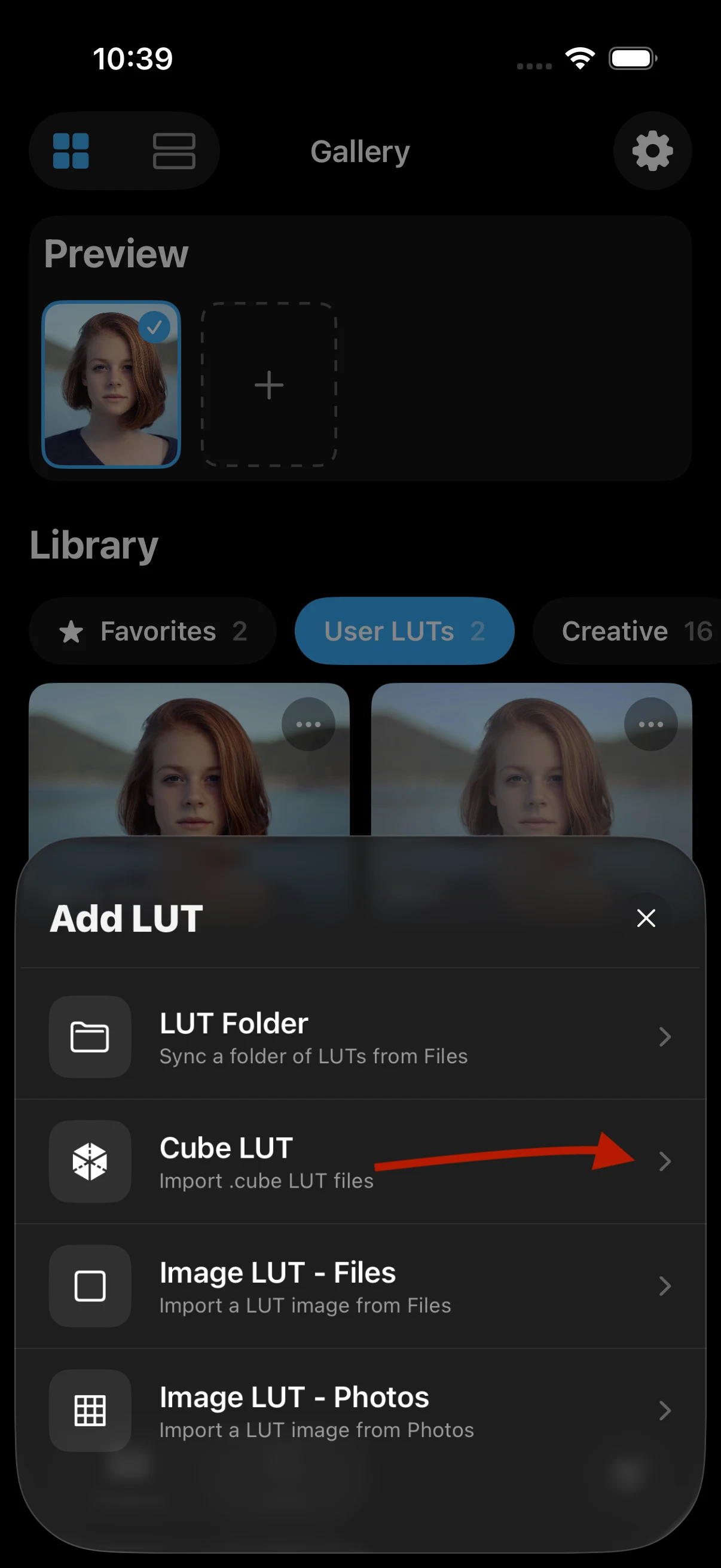
Choose Cube LUT for a standard file with the .cube extension.
2. Choose Cube LUT
Tap Cube LUT to open the iOS Files browser. Navigate to the folder containing your LUT, select the file, and confirm the import. PeekLUT accepts both lowercase .cube and uppercase .CUBE extensions.
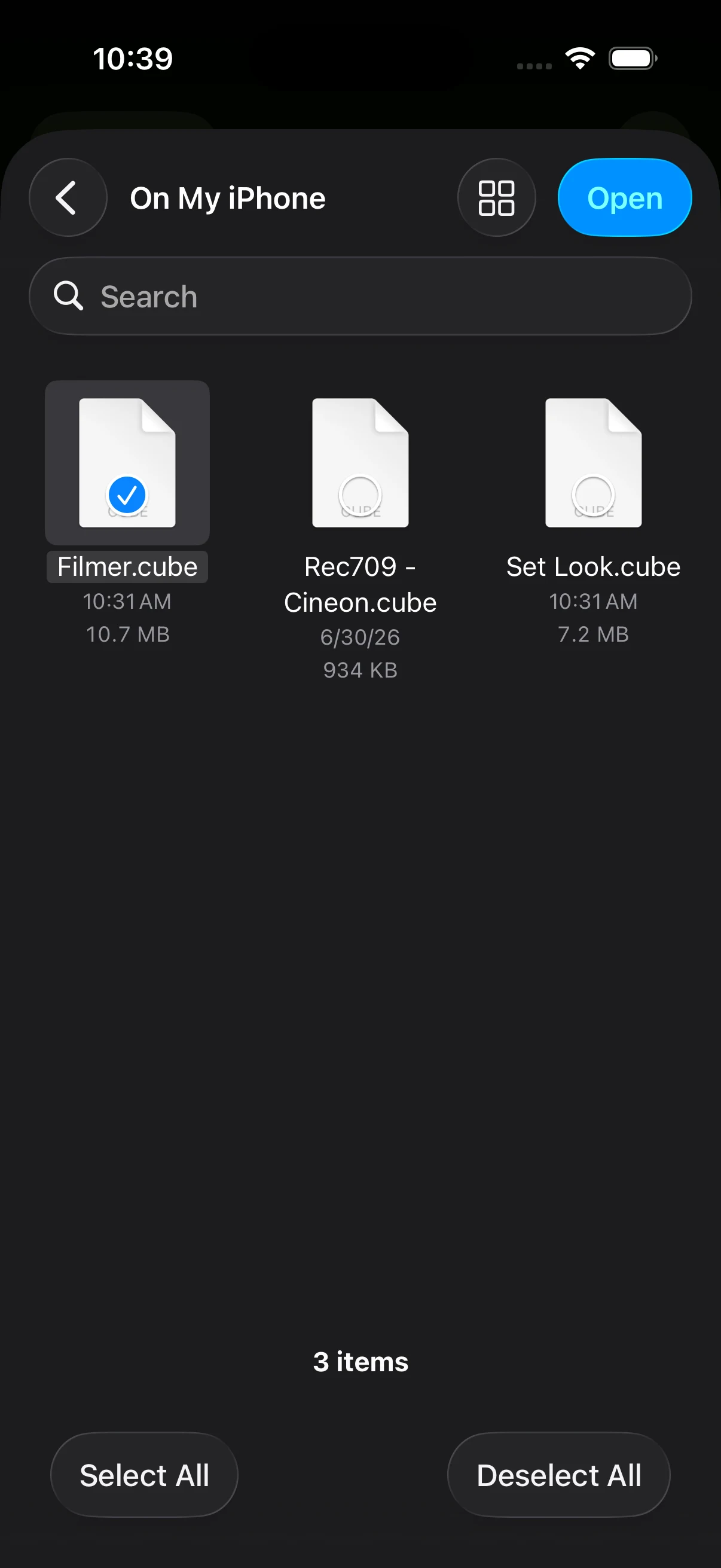
The Files browser can reach local storage, iCloud Drive, Downloads, and enabled storage providers.
You can select multiple .cube files in the same import. This is useful for a small purchased pack or a set of looks created on desktop.
3. Find the LUT under User LUTs
After import, PeekLUT creates a thumbnail and places the new look in the User LUTs collection. The LUT remains available for future photos and videos; you do not have to import it again for every edit.
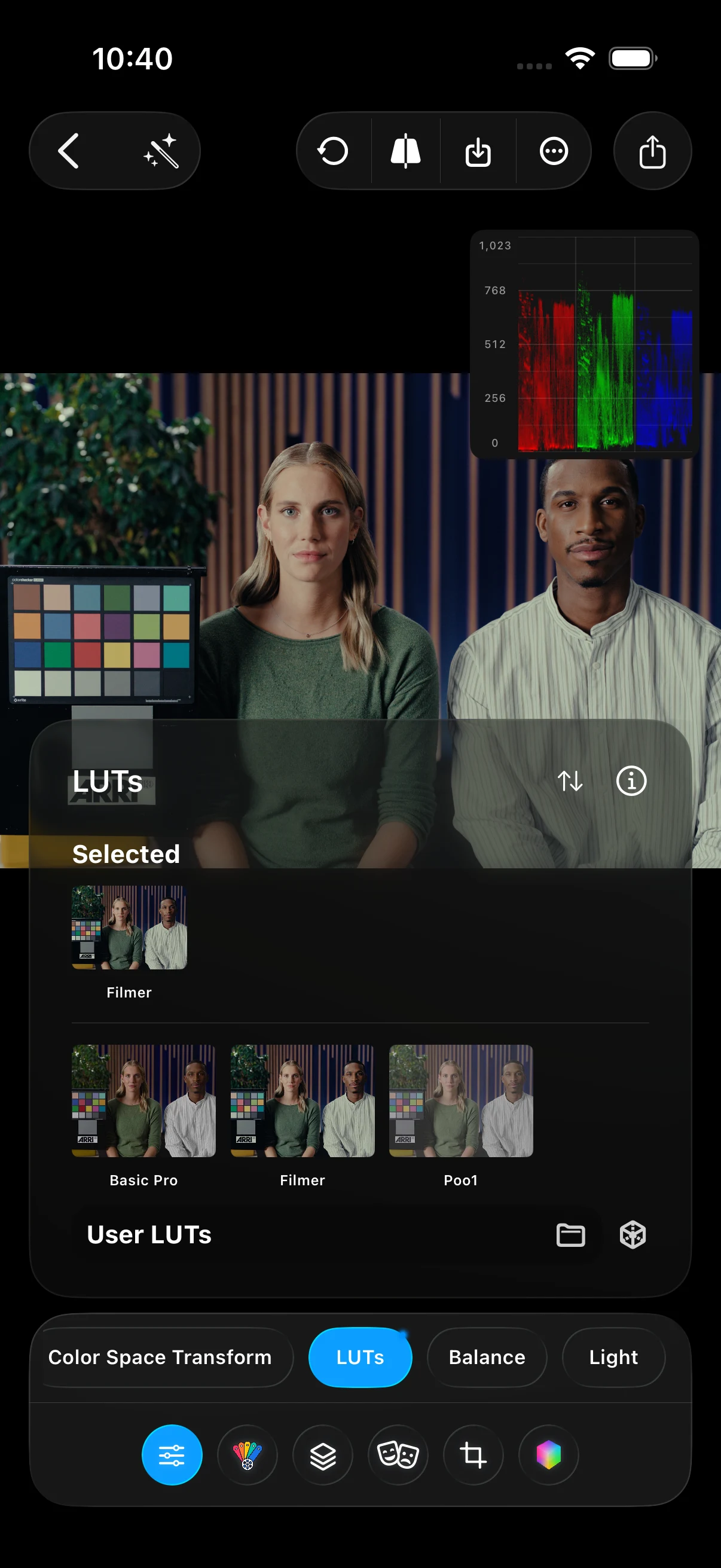
Imported .cube files appear in the User LUTs collection with visual previews.
Apply the LUT to a photo or video
Open the media you want to grade, select the LUTs group in the editor, and choose the imported look under User LUTs. PeekLUT previews the result directly on the current frame.
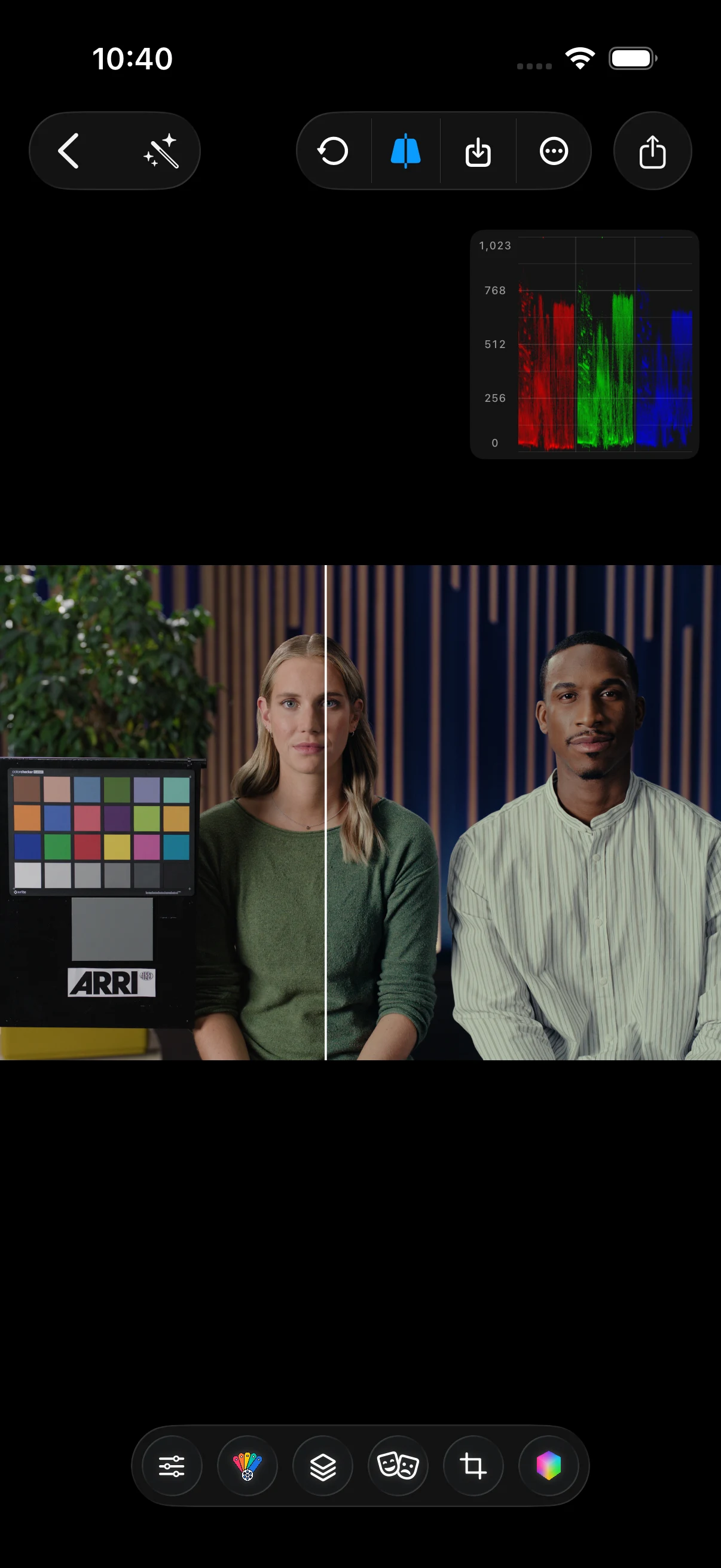
When you select a LUT, it moves into the Selected area. Compare the image before and after, then adjust the LUT's strength if the full transform is too aggressive.
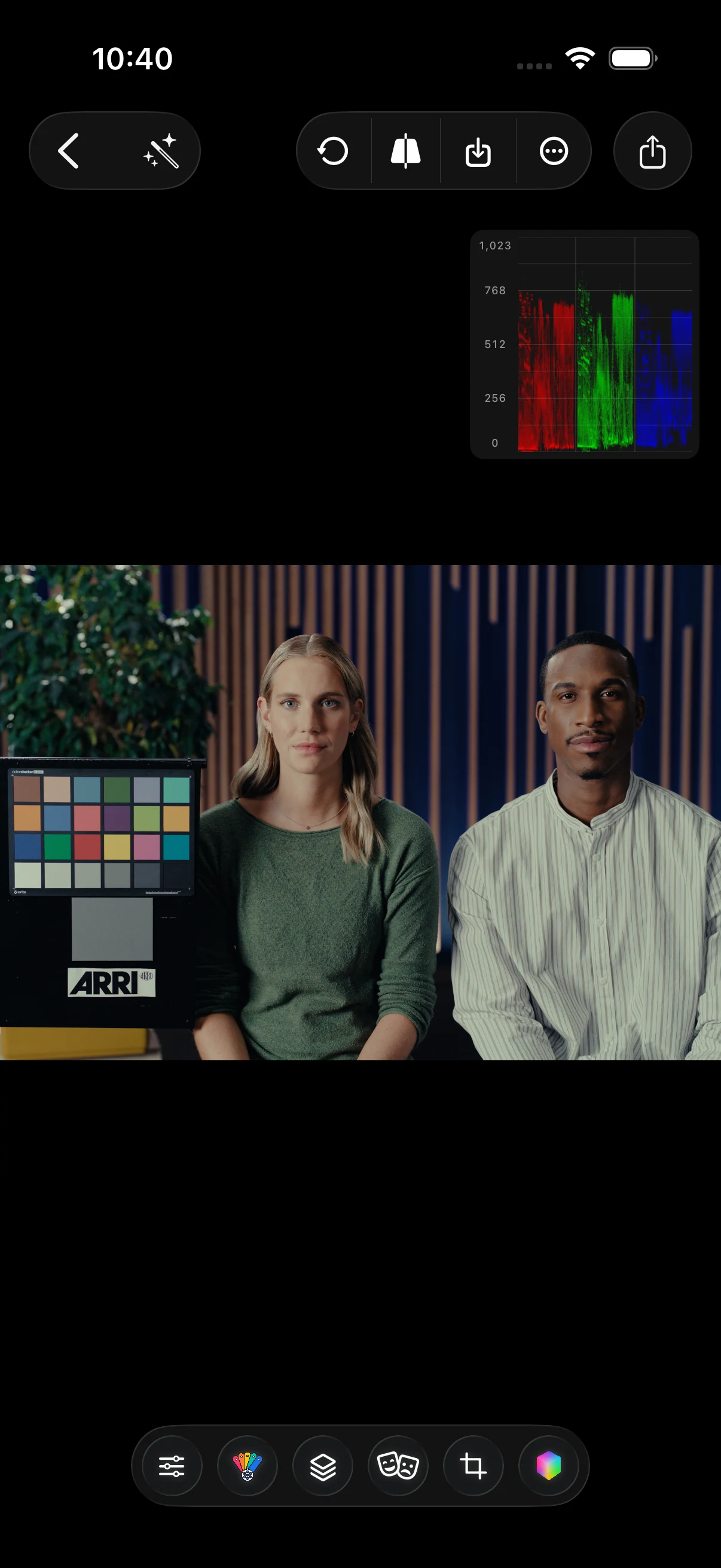
Do not judge only from a single thumbnail. Play the whole clip and inspect skin, neutrals, highlights, and saturated colors. A look that works on one frame can break when exposure or white balance changes.
Import several LUTs or link a full folder
There are two useful ways to bring in more than one LUT:
- Multi-select Cube LUT: choose several individual .cube files in the Files picker and import them together.
- LUT Folder: link a folder from Files when you maintain a larger collection. PeekLUT can sync the linked source and review additions or removals without rebuilding the library one file at a time.
Use multi-select for a small, stable group. Use a linked folder when your LUT library changes regularly or when you organize looks into packs outside the app.
Technical LUTs vs. creative LUTs
A reliable workflow gives each LUT one clear job.
Technical LUT
A technical LUT converts a known camera format into a working or display space—for example, Apple Log to Rec.709. The input must match what the LUT was built for.
PeekLUT also has a dedicated Color Space Transform group with presets such as Apple Log → DaVinci → Rec.709. If you use that built-in transform, do not add a second Apple Log-to-Rec.709 LUT on top. Choose one conversion method.
For Apple Log footage, use one clearly defined Apple Log-to-Rec.709 conversion before adding a creative look.
Creative LUT
A creative LUT shapes the palette or contrast after the source is in the expected color space. Examples include a cool night look, a restrained print-style palette, or a warm commercial finish.
Creative LUTs often need less than full strength. Correct exposure and white balance first, then reduce the LUT intensity until it supports the footage instead of overpowering it.
Can you stack LUTs on iPhone?
Yes. PeekLUT can combine multiple LUTs in one grade. A practical stack might contain one technical conversion followed by one creative look.
Avoid stacking several LUTs that all reshape contrast, saturation, and hue without a clear purpose. Each transform compounds the previous one, which can crush shadows, clip colors, or push skin away from a believable range.
Common import and color problems
The LUT is greyed out in Files
Confirm that the file ends in .cube or .CUBE and has finished downloading from iCloud or another provider. A ZIP archive must be extracted before its LUT files can be selected.
The image looks washed out
The LUT may expect a different input, or the footage may still need a log-to-Rec.709 conversion. Check what camera profile the LUT creator specifies.
The image becomes too contrasty or saturated
You may have applied a technical conversion twice, or the creative LUT may be too strong. Check Color Space Transform first, then reduce LUT intensity.
The colors change unexpectedly
Do not assume every flat-looking image is Apple Log. Match the input color space and gamma to the way the media was actually recorded.
The LUT does not include grain, masks, or glow
A .cube file stores a color mapping. It cannot store spatial effects such as masks, grain, halation, bloom, diffusion, or sharpening. Those effects remain editable parts of the PeekLUT grade and must be rendered into the finished photo or video.
Move a look back to desktop
After refining a grade, PeekLUT can convert supported color adjustments into a new .cube file. That makes it possible to start on iPhone and reuse the color transform in a desktop editor.
Transfer the exported file through Files, iCloud Drive, AirDrop, or another storage provider when you are ready to use it on desktop.
Frequently asked questions
Can iPhone open a .cube LUT file?
The Files app can store and share .cube files, but you need a compatible color application to preview and apply the transform. PeekLUT imports them directly from the Files picker.
Can I import multiple LUTs at once?
Yes. PeekLUT allows multiple .cube files to be selected in one Files import. It also supports linked LUT folders for larger libraries.
Do LUTs work on both photos and videos?
Yes. PeekLUT uses the same LUT library for photo and video grading.
Does footage have to be recorded in Log?
No. Use a log conversion only when the source was actually recorded in that log format. Creative LUTs can be designed for Rec.709 or other normal display-ready images.
PeekLUT
Color grading for iPhone and iPad